File Manager
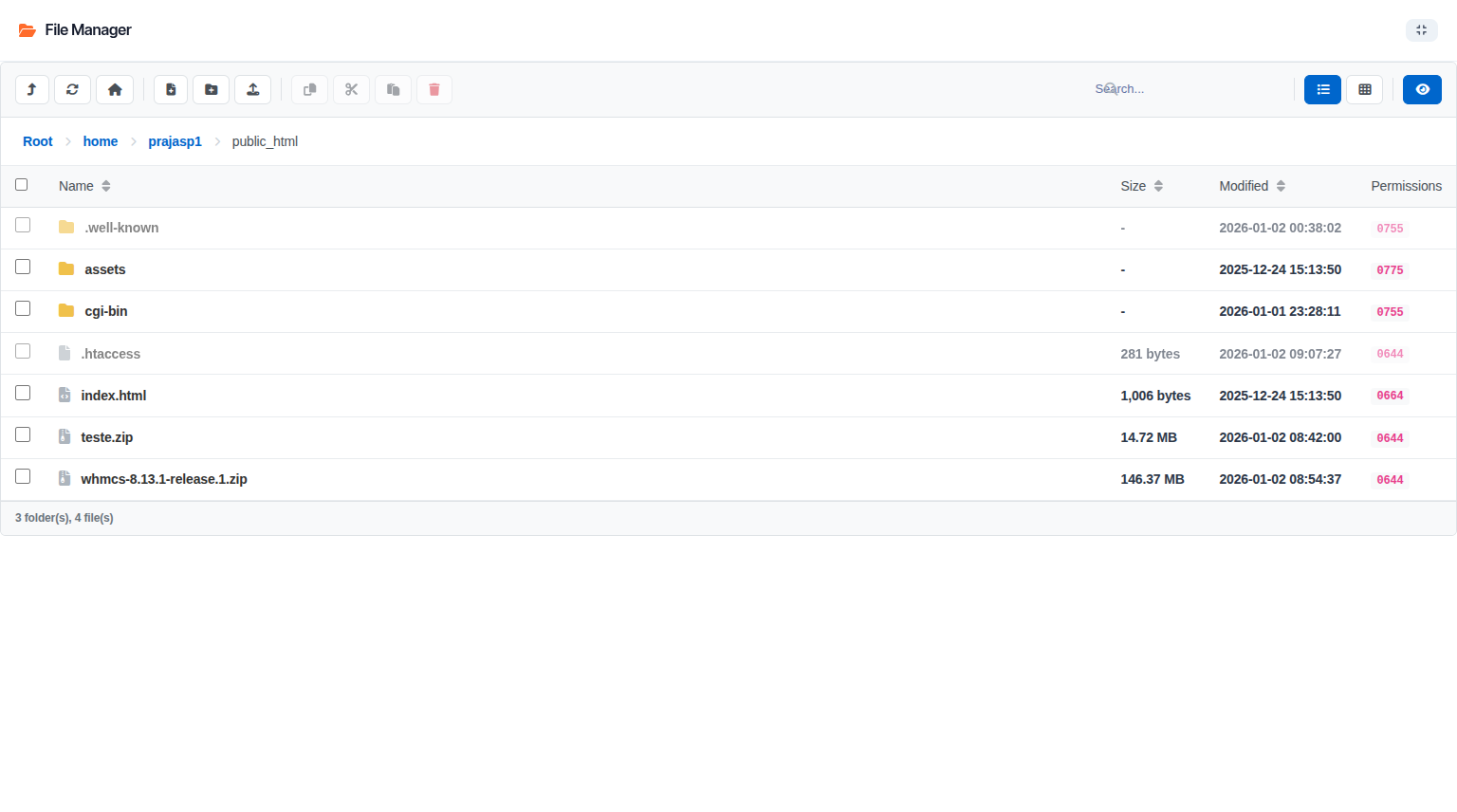
The File Manager provides a complete file management solution directly in your WHMCS client area.
Overview
The File Manager allows your customers to:
- Browse and navigate their hosting files
- Upload and download files
- Edit code with syntax highlighting
- Manage permissions
- Compress and extract archives
Navigation
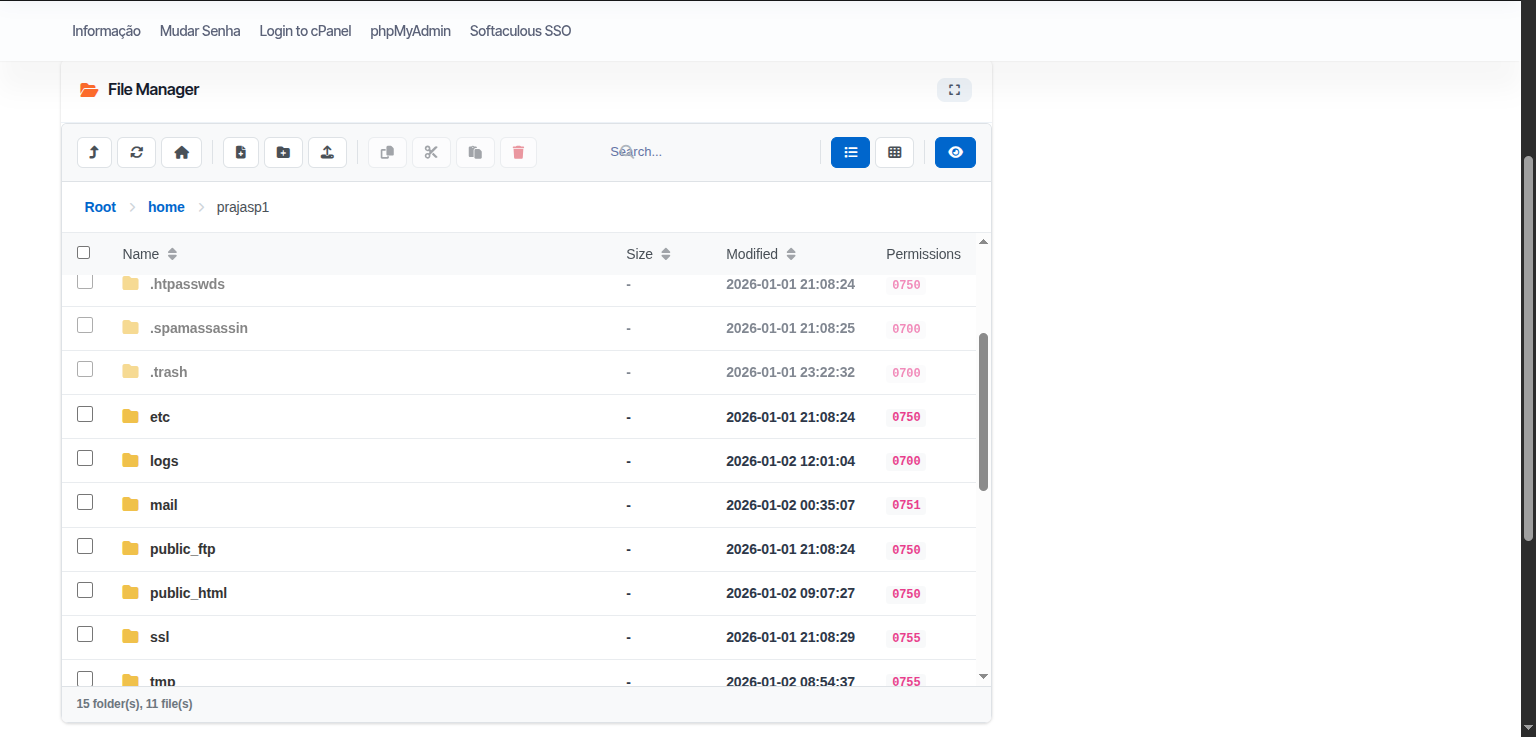
Breadcrumb Navigation
Click on any folder in the breadcrumb path to navigate directly to that location.
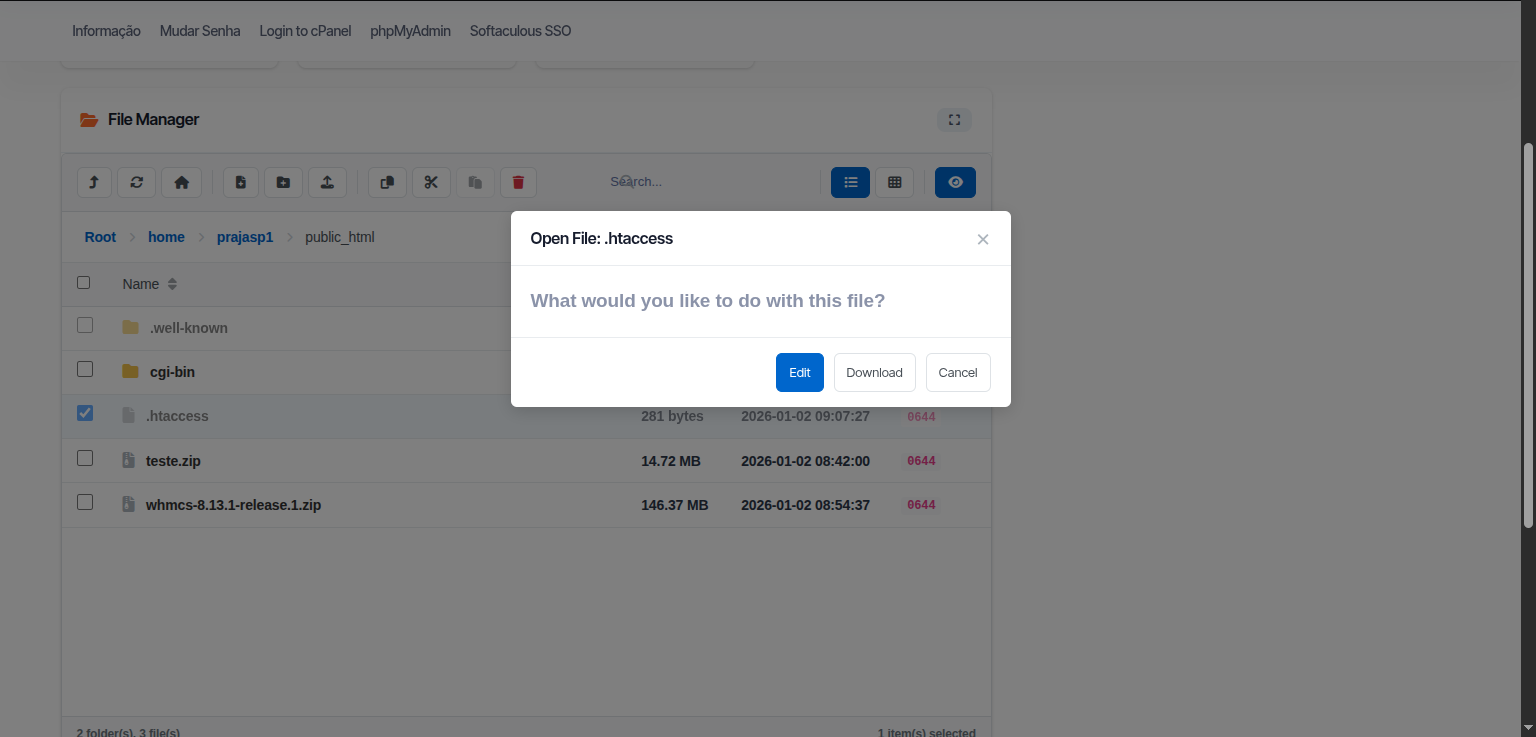
Double-Click
Double-click on a folder to open it, or on a file to view/edit it.
Context Menu
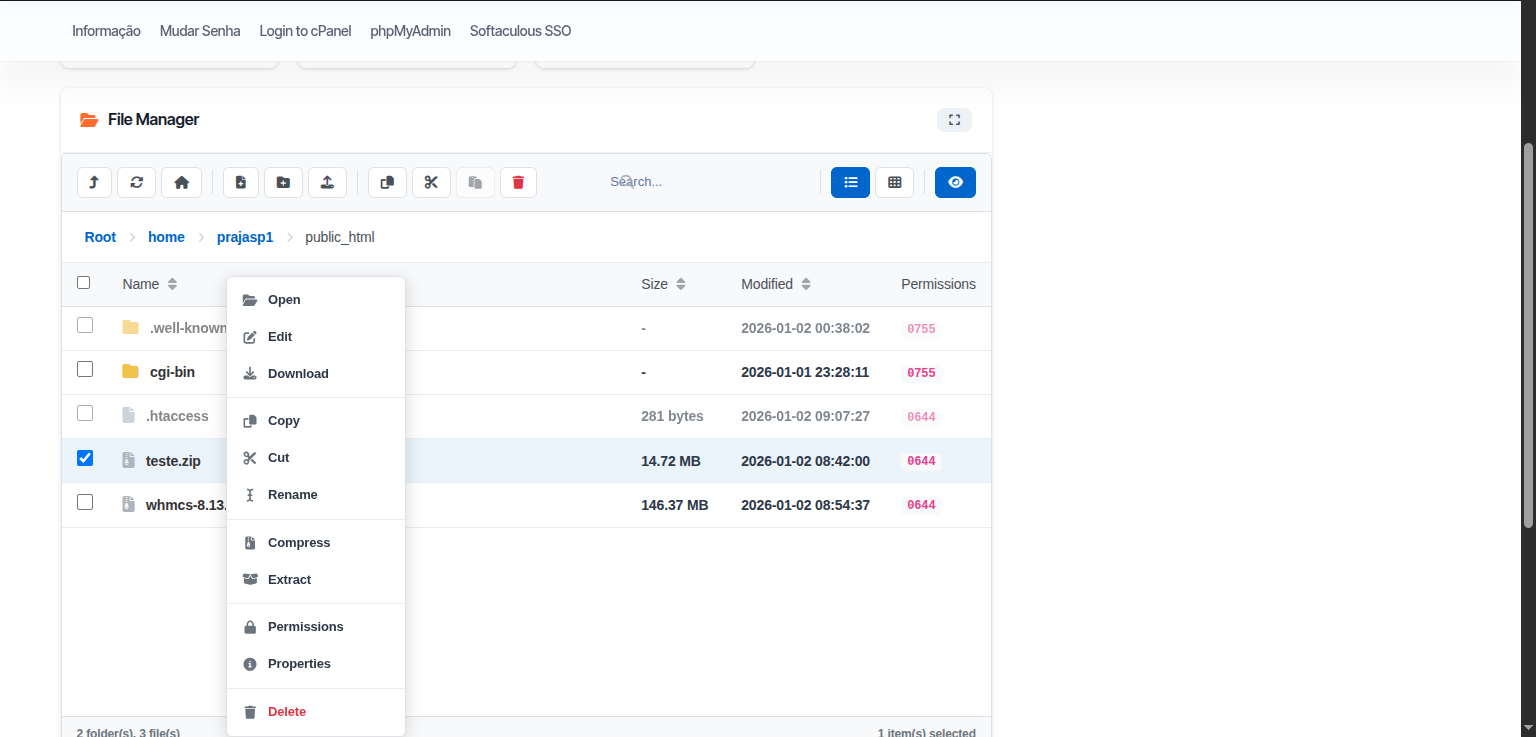
Right-click on any file or folder to access quick actions:
- Open / Edit
- Download
- Rename
- Copy
- Move
- Delete
- Permissions
- Compress
File Operations
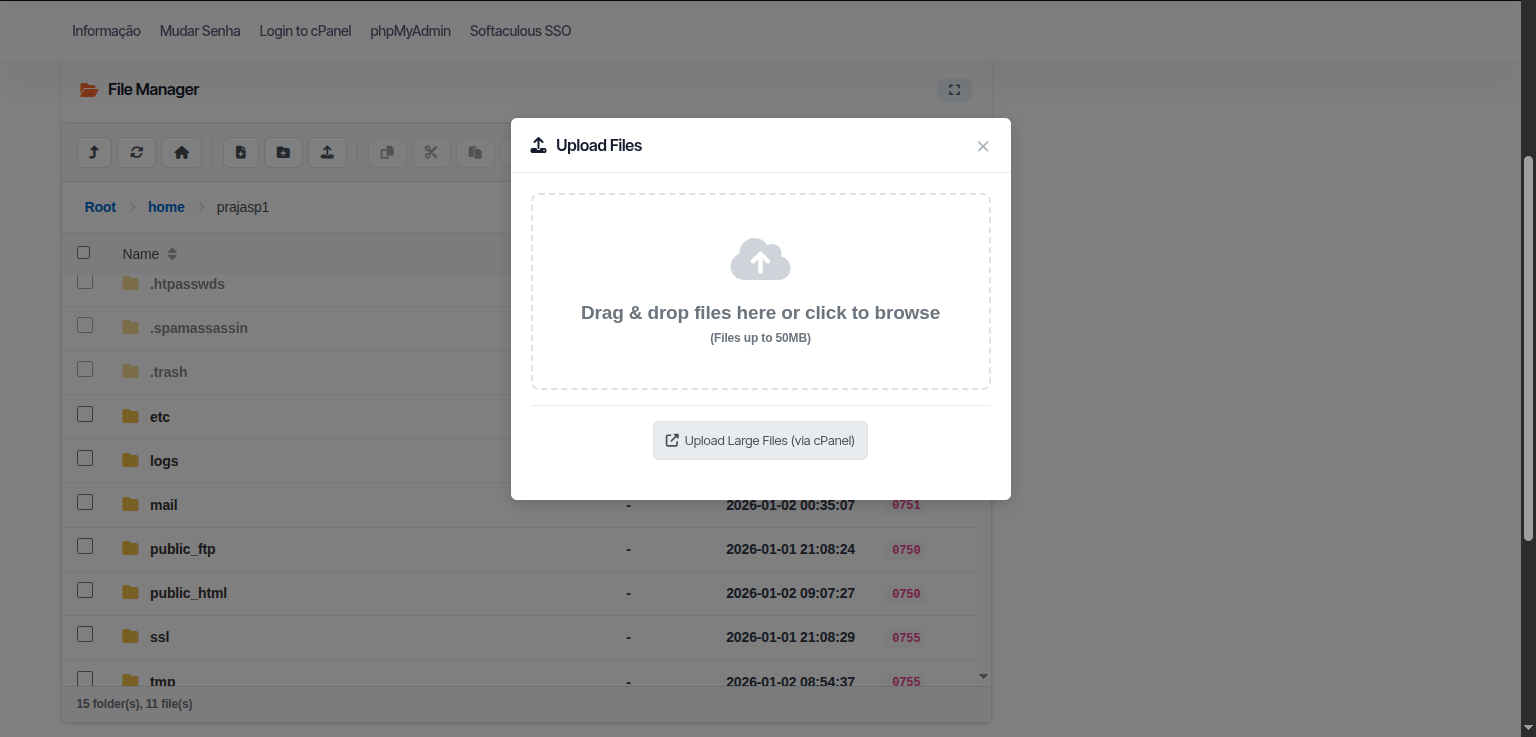
Upload Files
- Click the Upload button or drag files to the dropzone
- Select files from your computer
- Files will upload with progress indicator
For files larger than 50MB, use the "Upload Large Files (via cPanel)" button which opens the native cPanel uploader.
Download Files
- Click the Download button in the toolbar
- Or right-click → Download
- Files larger than 1MB download via cPanel direct link
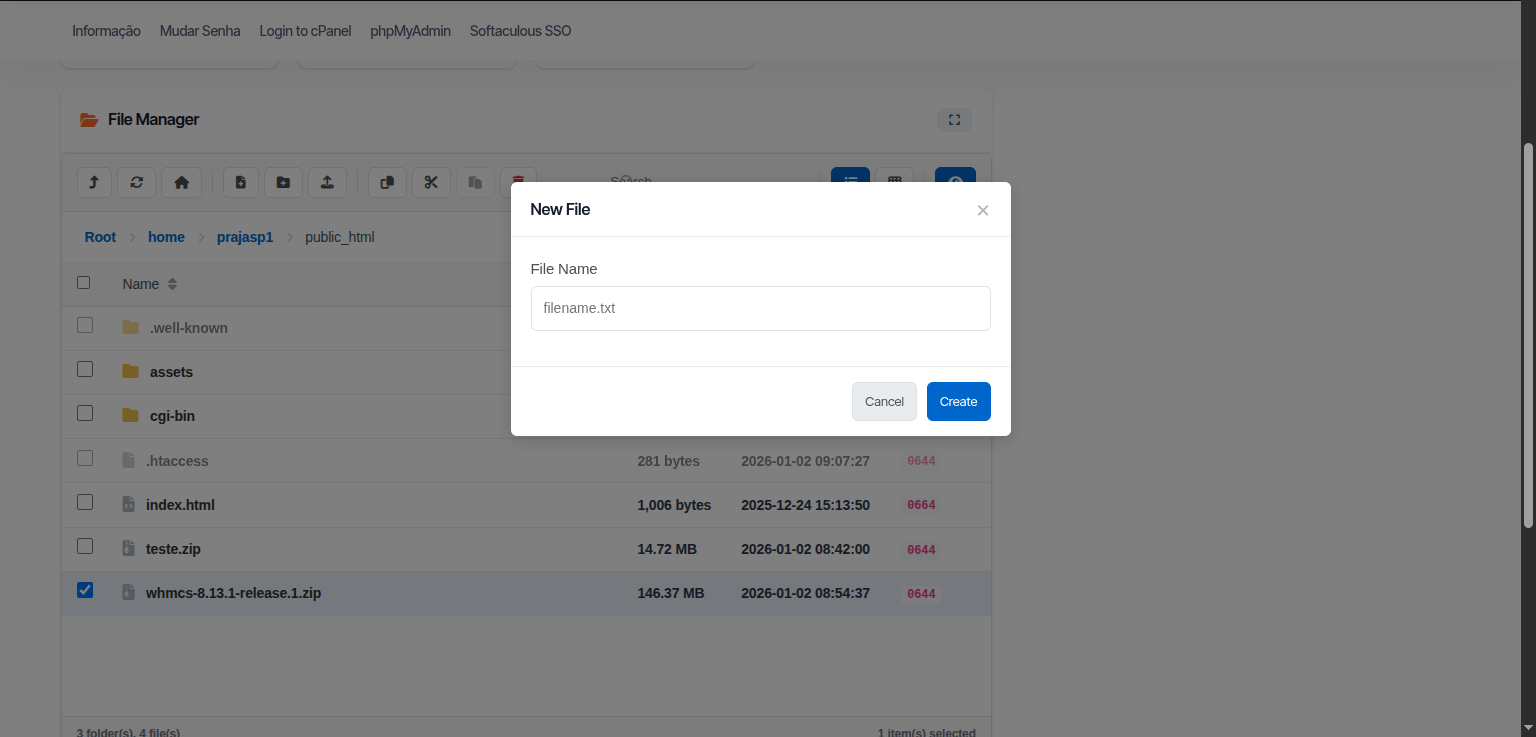
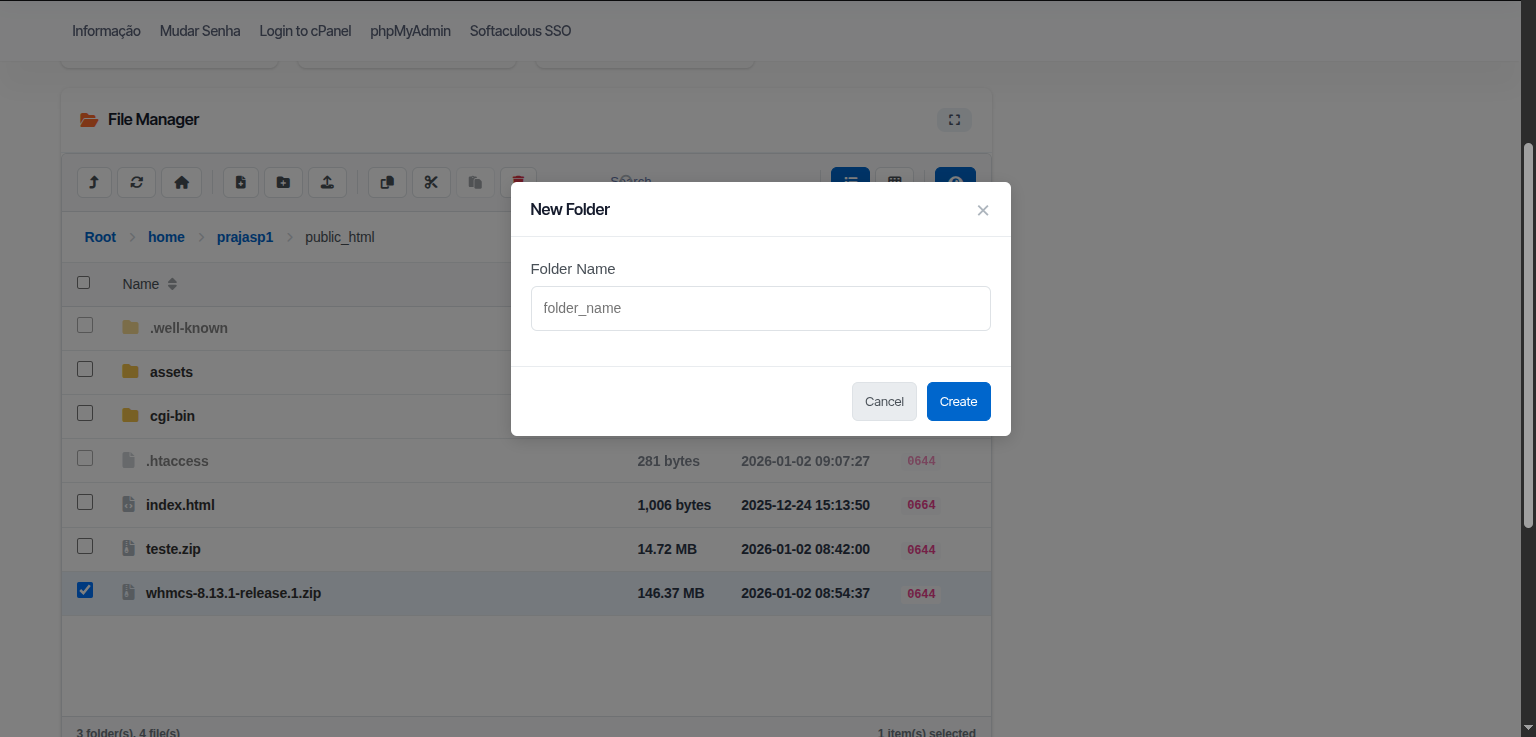
Create Files/Folders
- Click New File or New Folder button
- Enter the name
- Click Create
Edit Files
- Double-click a file or select and click Edit
- The code editor opens with syntax highlighting
- Make your changes
- Click Save
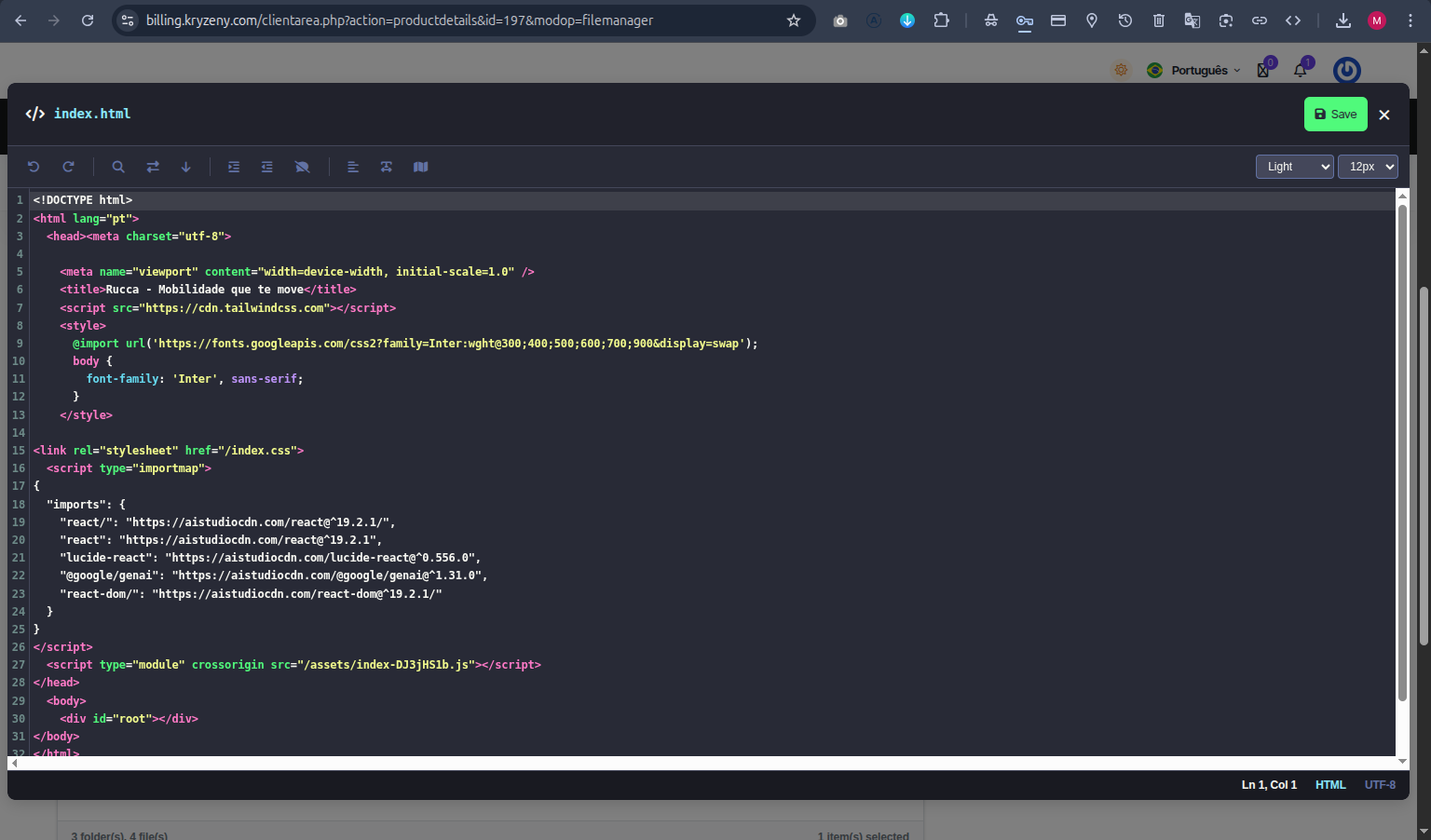
Supported syntax highlighting:
- PHP, JavaScript, HTML, CSS
- Python, Ruby, Perl
- JSON, XML, YAML
- SQL, Shell scripts
- And many more...
Rename
- Select the file/folder
- Press F2 or right-click → Rename
- Enter the new name
- Press Enter
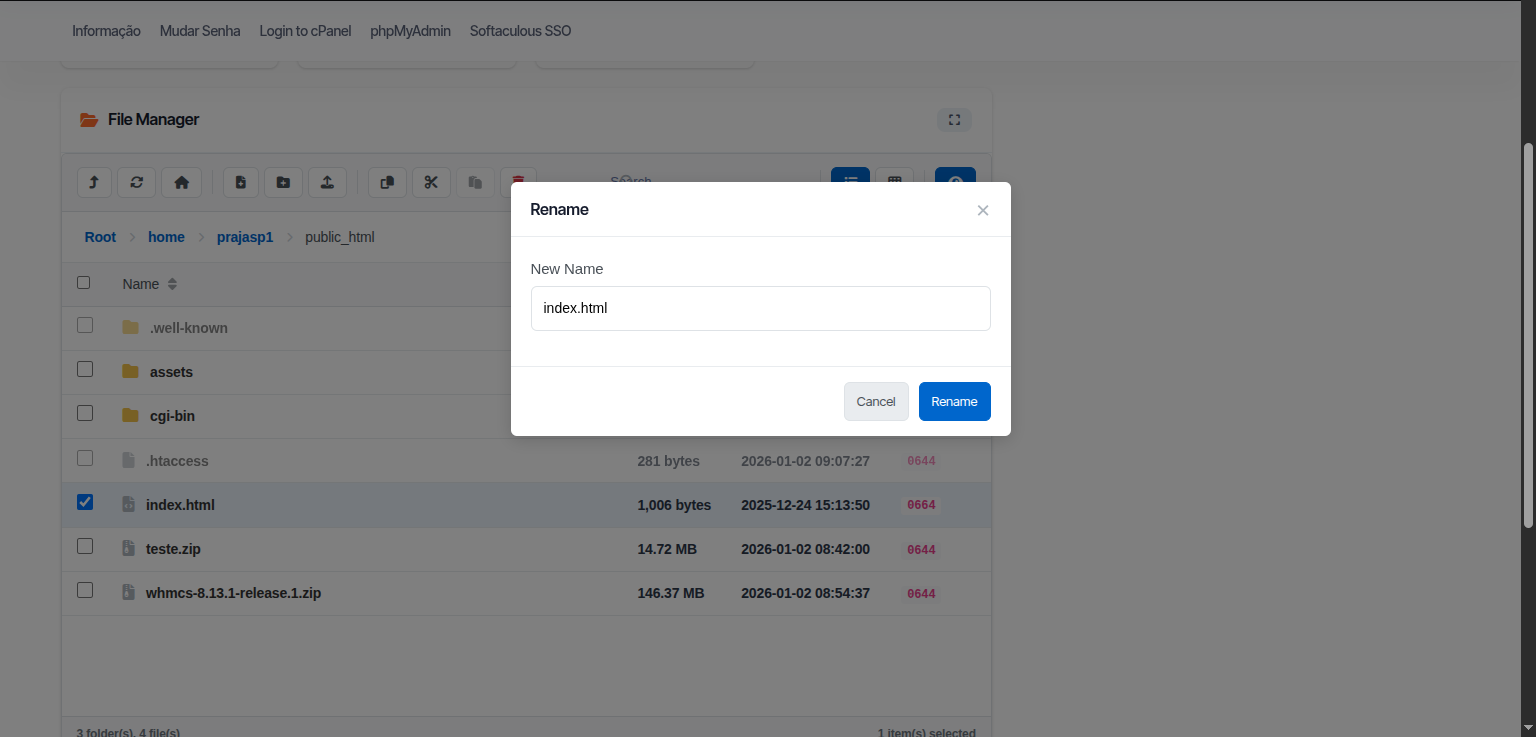
Copy / Move
- Select files/folders (use Ctrl+Click for multiple)
- Press Ctrl+C (copy) or Ctrl+X (cut)
- Navigate to destination
- Press Ctrl+V to paste
Delete
- Select files/folders
- Press Delete key or click Delete button
- Confirm deletion
Deleted files cannot be recovered. Make sure you have backups.
Change Permissions
- Select file/folder
- Click Permissions or right-click → Permissions
- Set permissions using checkboxes or numeric value
- Click Save
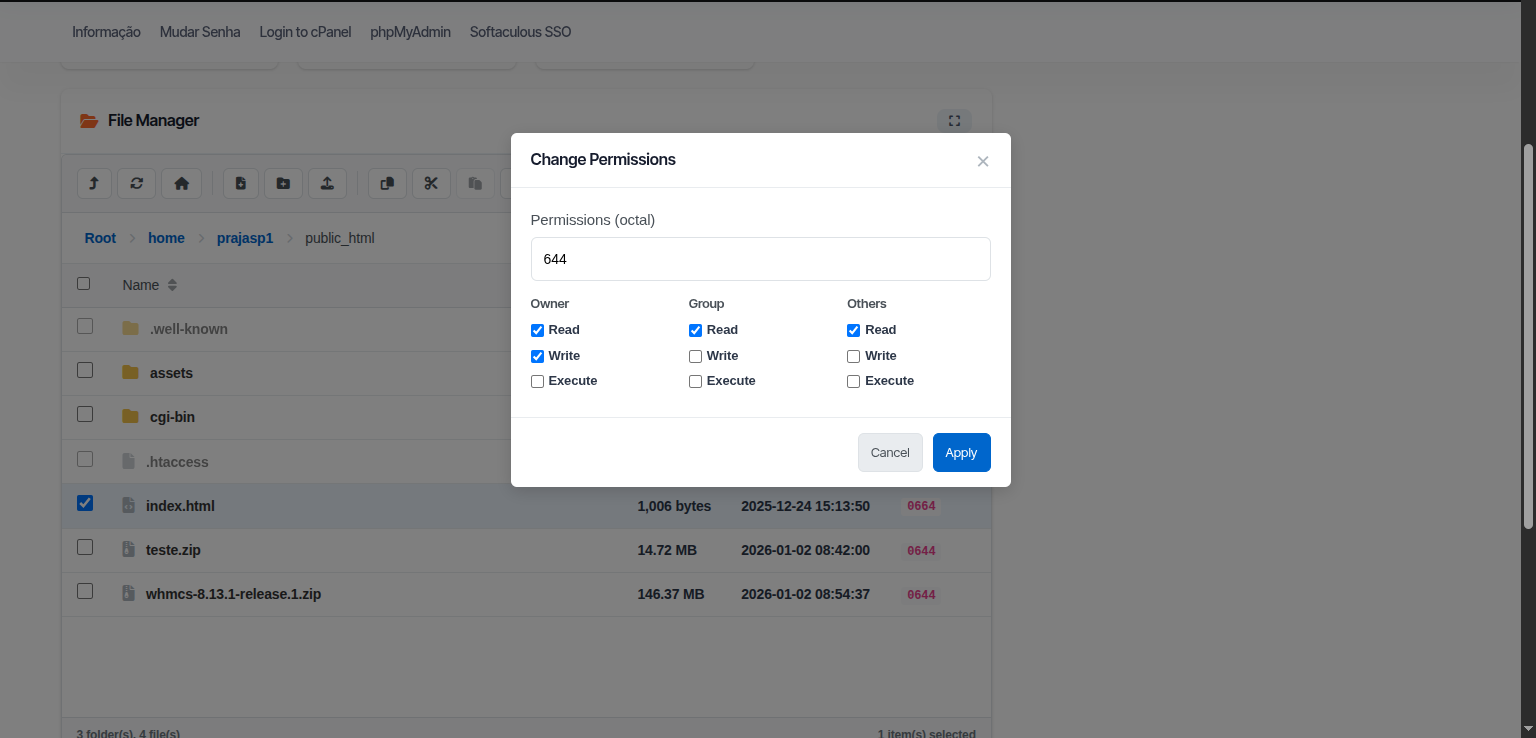
Common permissions:
| Value | Description |
|---|---|
| 644 | Files (owner read/write, others read) |
| 755 | Folders (owner full, others read/execute) |
| 600 | Private files |
| 777 | Full access (not recommended) |
Compress / Extract
Create Archive
- Select files/folders to compress
- Click Compress button
- Choose format (ZIP, TAR, GZ)
- Enter archive name
- Click Compress
Extract Archive
- Select a compressed file (.zip, .tar.gz, etc.)
- Click Extract button
- Choose destination folder
- Click Extract
Search
- Type in the search box
- Results filter in real-time
- Press Escape to clear search
View Options
List View
Shows files in a detailed list with:
- Name
- Size
- Type
- Modified date
- Permissions
Grid View
Shows files as icons in a grid layout.
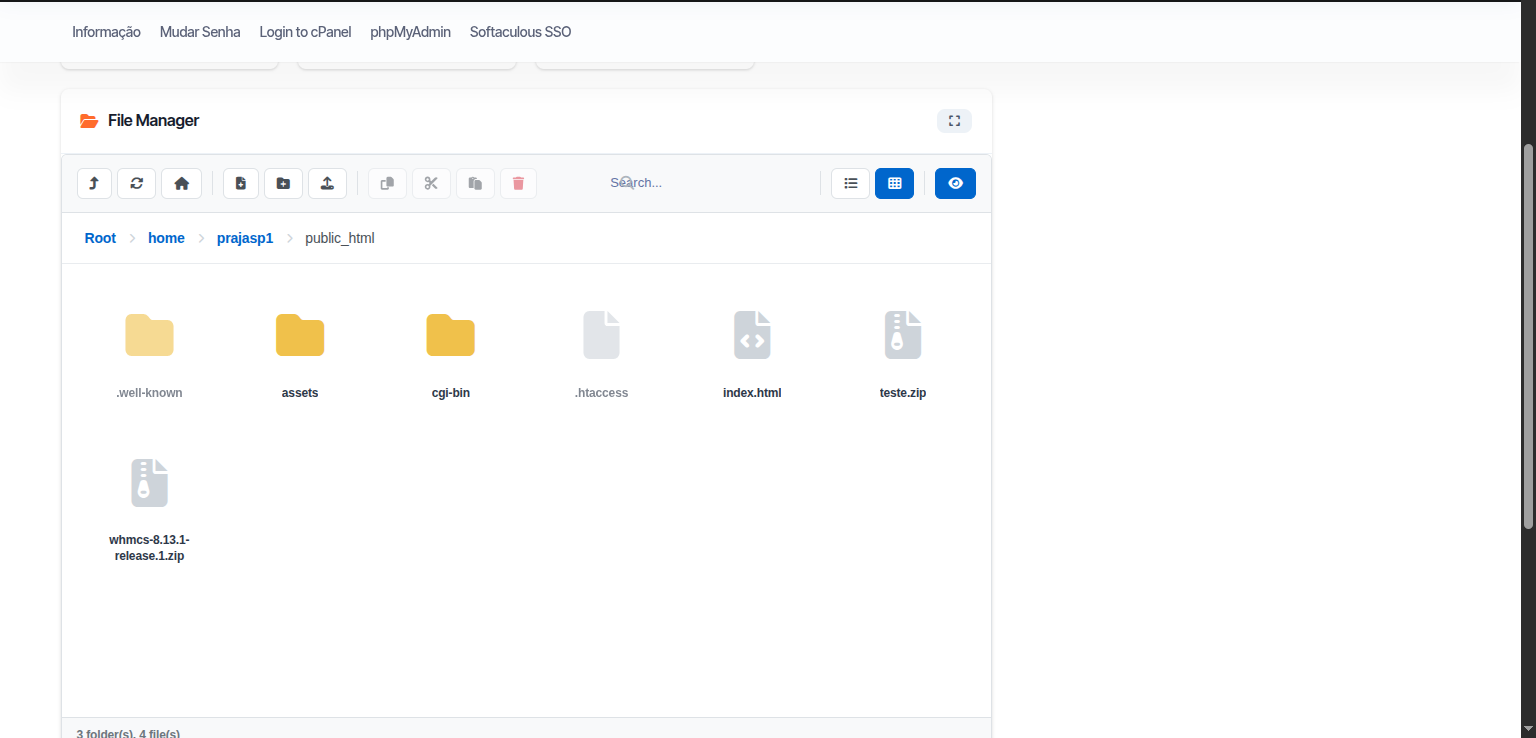
Toggle between views using the view buttons in the toolbar.
Keyboard Shortcuts
| Shortcut | Action |
|---|---|
| Enter | Open file/folder |
| F2 | Rename |
| Delete | Delete selected |
| Ctrl+A | Select all |
| Ctrl+C | Copy |
| Ctrl+X | Cut |
| Ctrl+V | Paste |
| Escape | Deselect / Close modal |
Fullscreen Mode
Click the Fullscreen button to expand the File Manager to full screen for better workspace.